This article shows you how to check your backup allowance, create a backup of your Palworld server from the EZ Game Host panel, and keep an extra offline copy of your save data. A recent backup is the fastest way to recover from a bad config change or a reinstall gone wrong.
Why back up
Take a backup before anything that could put your world at risk:
- Before editing
PalWorldSettings.ini. Gameplay options are easy to get wrong, and a backup lets you roll back your experiments. See Changing game settings. - Before reinstalling the server. The panel's Reinstall Servercard warns: "Some files may be deleted or modified during this process, please back up your data before continuing." See Reinstalling and maintenance.
- Before major game updates or mod changes, in case the new version has problems with your existing world.
bIsUseBackupSaveData=True in PalWorldSettings.ini, so the game keeps its own backup copies of save data as it runs. That is a useful game-level safety net, but it lives on the same server disk, so it is not a substitute for panel backups or an offline copy.Check your backup limit
The number of backups you can keep is set by your plan.
- In the panel sidebar, open Settings.
- Find the Limits card and check the Backups value.
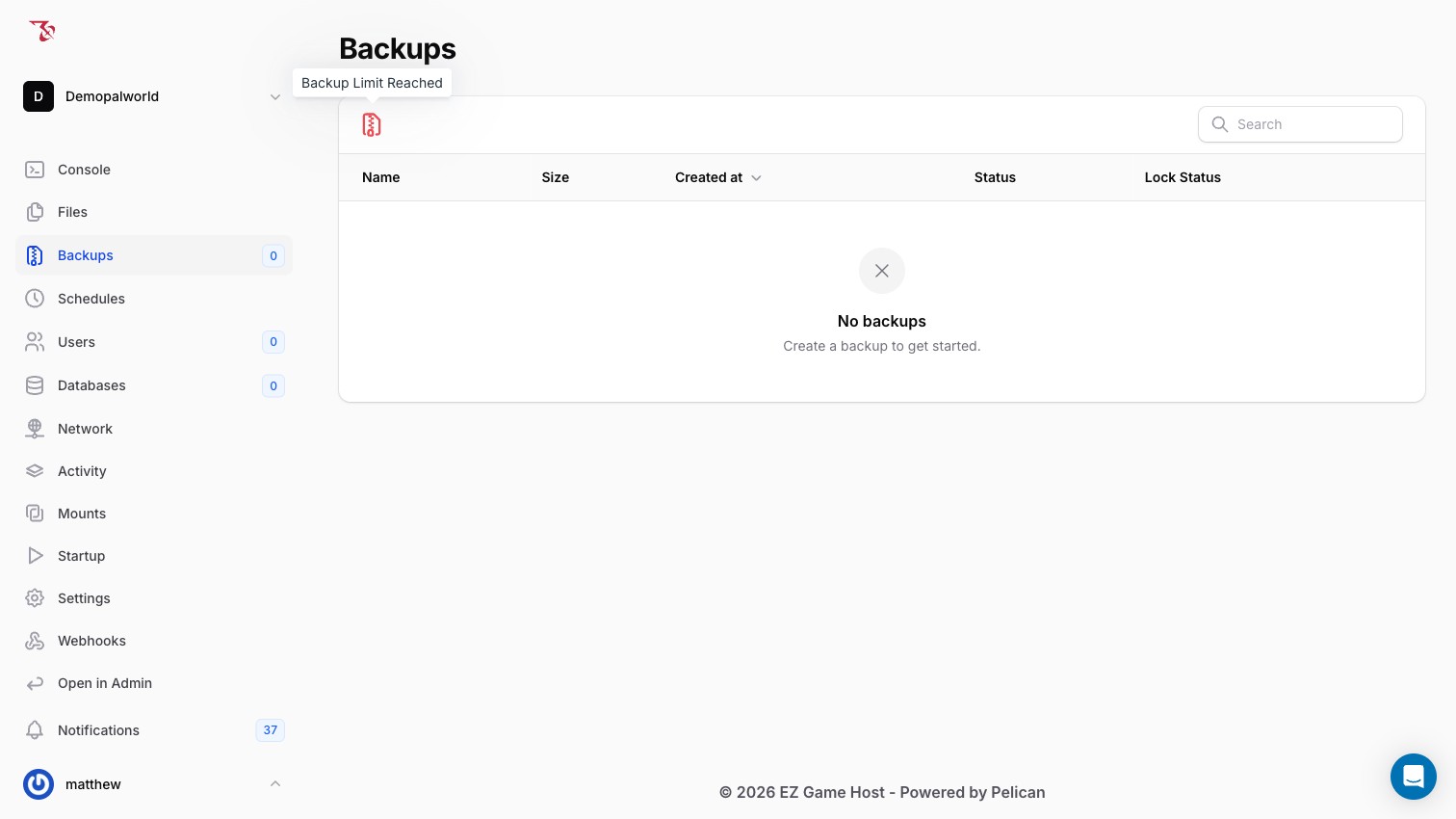
If your limit is reached (or your plan includes no backups at all), the create-backup button on the Backups page is disabled and shows a "Backup Limit Reached" tooltip. Delete an older backup to free a slot, or contact EZ Game Host support about a plan with more backup slots.
Create a backup
- In the panel sidebar, open Backups.
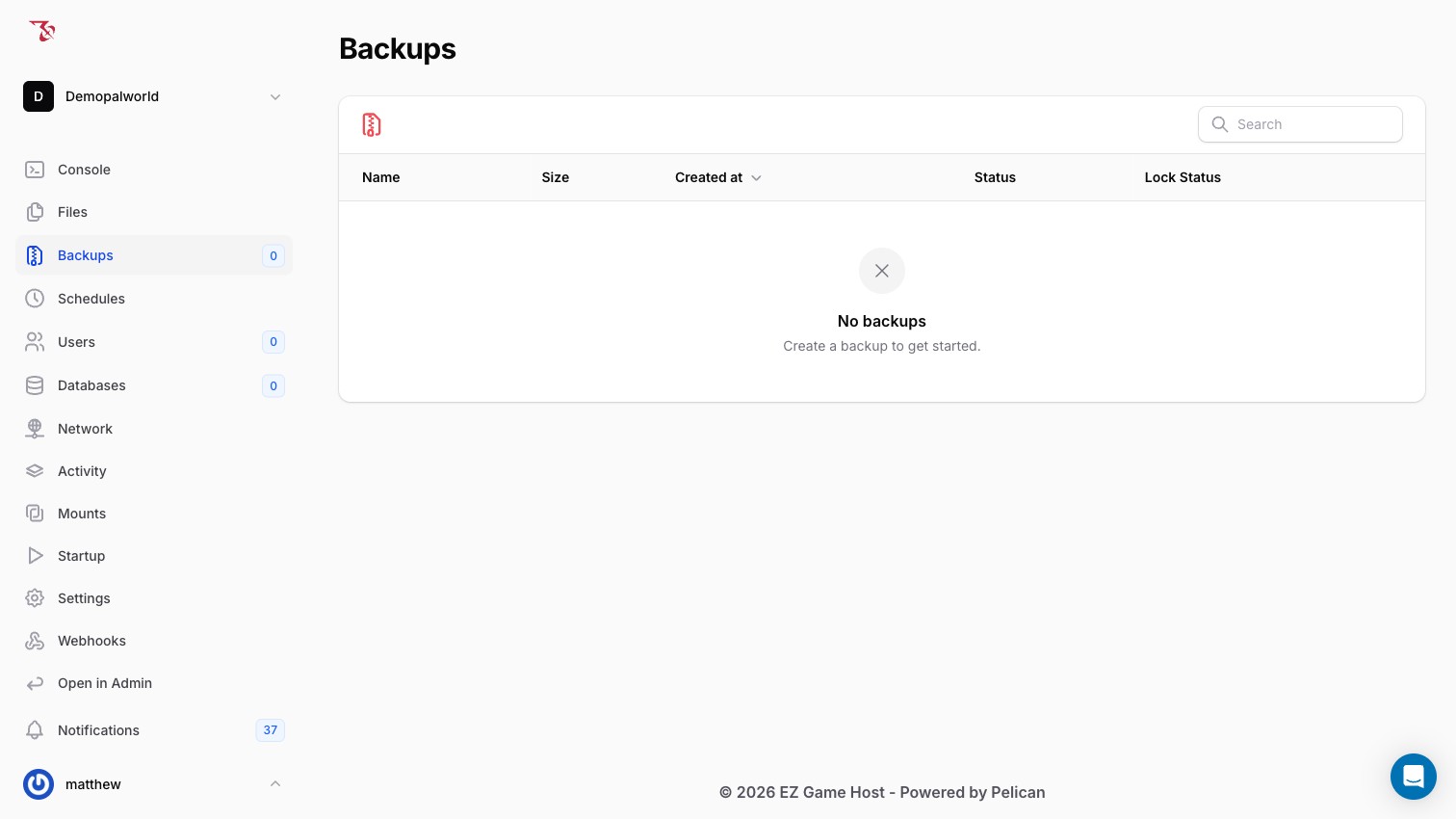
- Click the archive icon in the top-left of the page (if you have never made a backup, the page shows "No backups / Create a backup to get started").
- Complete the create-backup prompt and confirm.
- Watch the new row in the backup list. The table shows Name, Size, Created at, Status, and Lock Status. Wait for the Status column to show the backup has completed before relying on it.
Restore, lock, or delete a backup
Once a backup's Statusshows it has completed, you can manage it from the backup list: restore the server from it, lock it so it can't be deleted accidentally (locked backups are indicated in the Lock Status column), or delete it to free up space against your backup limit.
Keep an offline copy via SFTP
Panel backups live on EZ Game Host infrastructure. For anything you truly can't lose, also download a copy to your own computer:
- In Settings, find the SFTP Information card for your connection string and Username. Your SFTP password is the same as your panel password.
- Connect with an SFTP client and download the
Pal/Savedfolder, which contains your world saves and the live config.
For step-by-step SFTP instructions, see Managing files and SFTP.