Invite friends or co-admins to help manage your Palworld server without sharing your account password, and use the Activity page to see exactly who did what. In this article you will invite a subuser with limited permissions and review the server's audit log.
Before you start
- You need the email address your friend will use to sign in to the panel.
- Decide what they should be able to do. Every permission you grant applies to the whole server, so grant only what they need (see Choosing permissions).
Invite a user
- In your server's sidebar, open Users.
- Click the invite icon (the person+ icon) in the toolbar. If no one has been invited yet, the page shows "No subusers".
- In the Invite Userdialog, enter your friend's email address in the Email field.
- Choose permissions:
- Toggle Assign all to grant every permission (only do this for someone you trust as much as yourself), or
- Work through the permission category tabs (Control, File, Backup, Schedule, User, Database, Allocation, Activity, Mounts, Startup, Settings) and enable only the permissions they need. The Control tab, for example, includes a Select all option for the category.
- Click Invite.
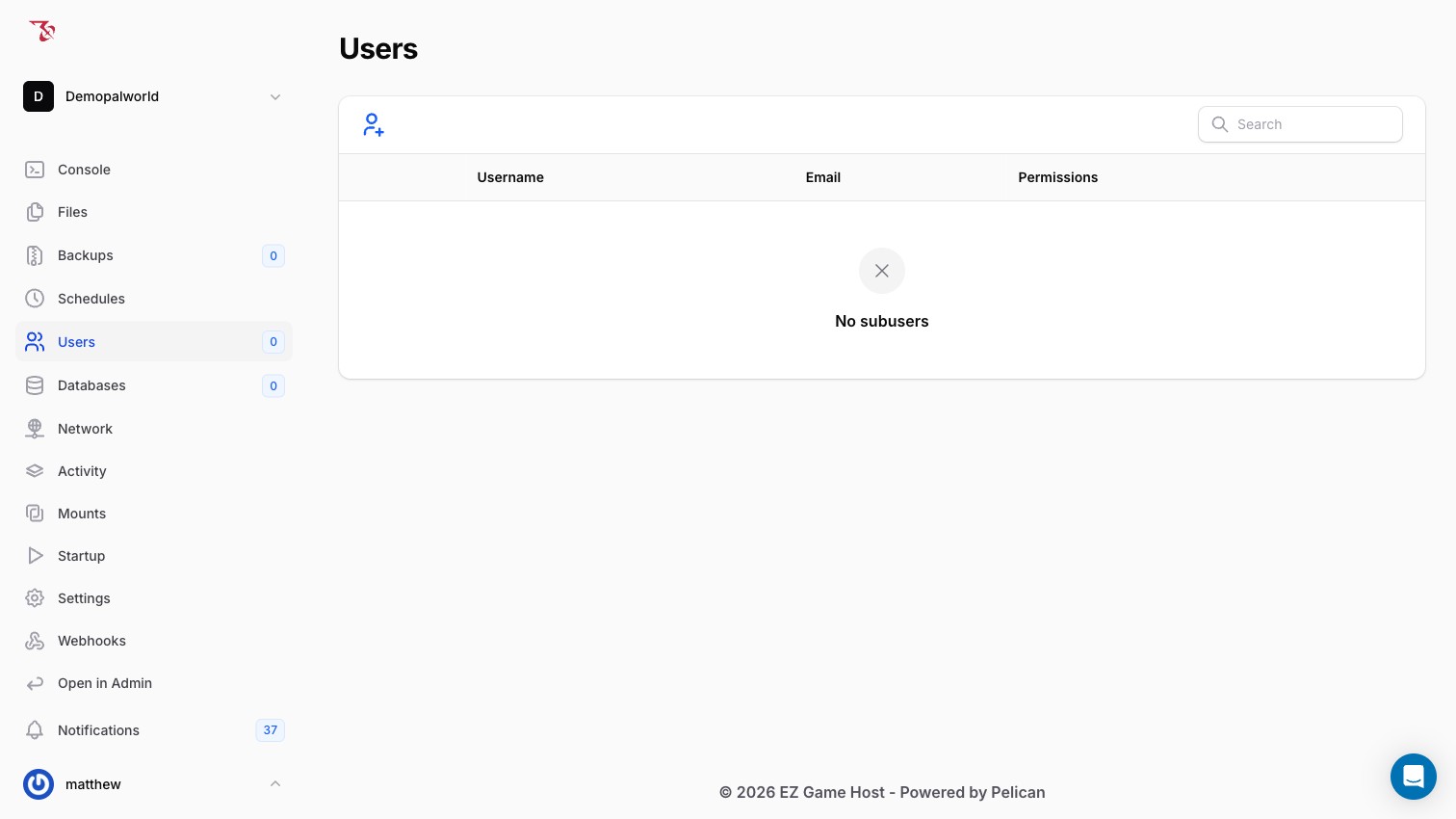
The Users table lists each subuser's Username, Email, and Permissions.
Choosing permissions (least privilege)
Grant the smallest set of permissions that covers what the person will actually do. Common setups:
- Co-admin who can restart the server and use the console: enable only the Controlcategory. Its description reads "Permissions that control a user's ability to control the power state of a server, or send commands." and it contains:
- Console: "Allows a user to send data to the server console."
- Start: "Allows a user to start the server instance."
- Stop: "Allows a user to stop the server instance."
- Restart: "Allows a user to restart the server instance."
- Someone who only restarts the server when it acts up: enable just Start, Stop, and Restart under Control, and leave Console off.
- Someone managing world files or backups: add the File or Backup category on top. See Managing files over SFTP and Backing up your server for what those areas cover.
Audit activity on your server
Actions taken through the panel, whether by you or by any subuser, are logged on the Activity page.
- In the sidebar, open Activity.
- Review the audit log table. Each row shows the Event, the User who performed it, and a Timestamp.
- Click the eye icon on a row to view its details and metadata.
- Use the filter icon at the top right to narrow the list, and the per-page selector (25/50) to show more rows.
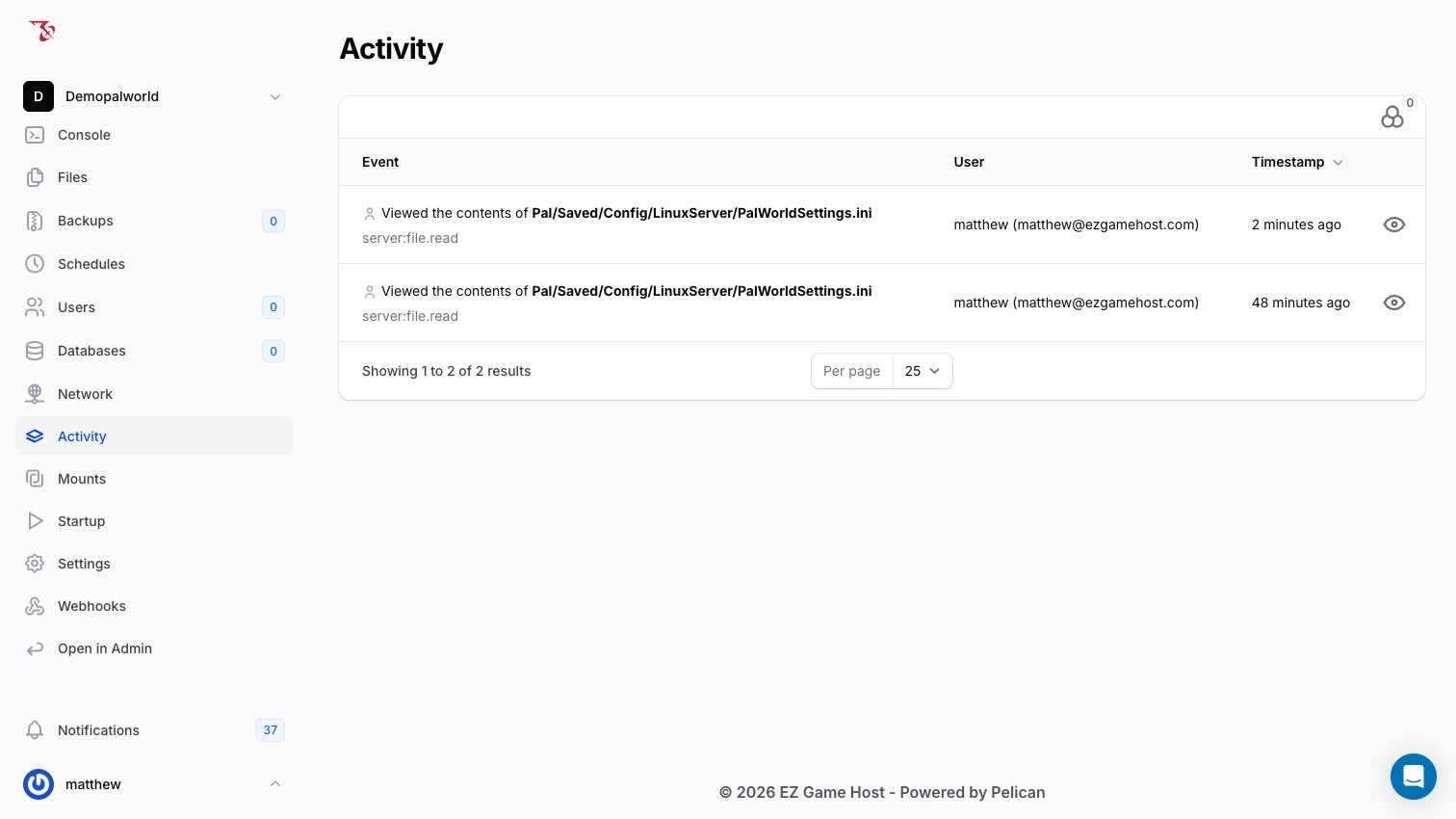
For example, opening a config file in the file editor is logged as an event like "Viewed the contents of Pal/Saved/Config/LinuxServer/PalWorldSettings.ini" tagged server:file.read, attributed to the user who opened it.
server:file.read) tell you which part of the panel was used, and the User column tells you who used it.Webhooks
While the Activity page is a log you check yourself, webhooks let the panel notify external services about server events.
- In the sidebar, open Webhooks.
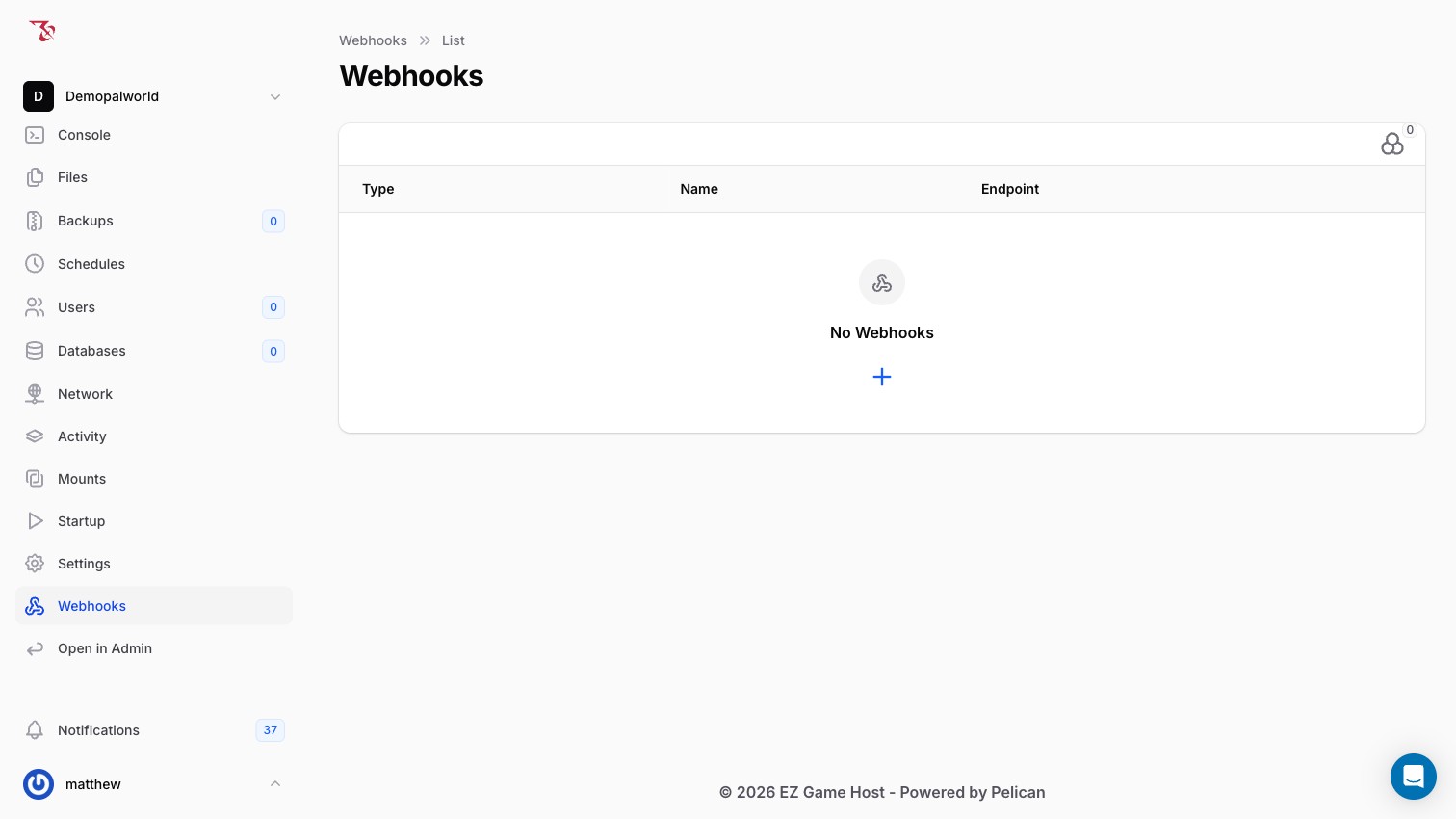
- Review the list. Each webhook shows its Type, Name, and Endpoint. If none have been set up yet, the page shows "No Webhooks".
- Click the + button to create a new webhook and point it at the service you want to notify.
Related articles
- Server settings: where the Admin Password and other startup variables live
- Console commands: what a user with the Console permission can do
- Backing up your server
- Managing files over SFTP