This article gives you a tour of the EZ Game Host panel for your new Palworld server: where everything lives, how to start and stop the server, and how to tell from the log that it booted successfully.
Open your server in the panel
- Log in at
panel.ezgamehost.com. - Select your server. Server pages live at
panel.ezgamehost.com/server/<server-id>/.... - The dropdown at the top-left of the sidebar shows the current server's name. If you have more than one server with us, this dropdown lets you jump to your other servers.
What each sidebar section is for
| Section | What it does |
|---|---|
| Console | Live server log, power buttons, and a command input. Your day-to-day home page. |
| Files | Browse, edit, upload, and download your server's files, including PalWorldSettings.ini. See Managing files and SFTP. |
| Backups | Create backups of your server (subject to your plan's backup limit). See Backing up your server. |
| Schedules | Automate tasks on a cron schedule, such as regular restarts. See Scheduling tasks. |
| Users | Invite other people (subusers) with fine-grained permissions. See Subusers and the activity log. |
| Databases | Manage databases attached to the server, if your plan includes any. If your plan's database limit is 0, this page shows "No databases". |
| Network | View your server's IP address and port allocations (what players connect to). See Connecting to your server. |
| Activity | Audit log of who did what on the server and when. |
| Mounts | Manage any mounts attached to your server. Most servers show "There are no user-mountable mounts available for this server." |
| Startup | The startup command and the Server Variables that control it (server name, passwords, max players, and more). See Server settings. |
| Settings | Panel-side server info (rename the server in the panel, view its UUID and node), resource limits, SFTP connection details, and the Reinstall option (reinstalling can delete or modify files, so back up your data first; see Backing up your server). |
| Webhooks | Send notifications about server events to external endpoints. |
The Console page
The Console page has four main parts:
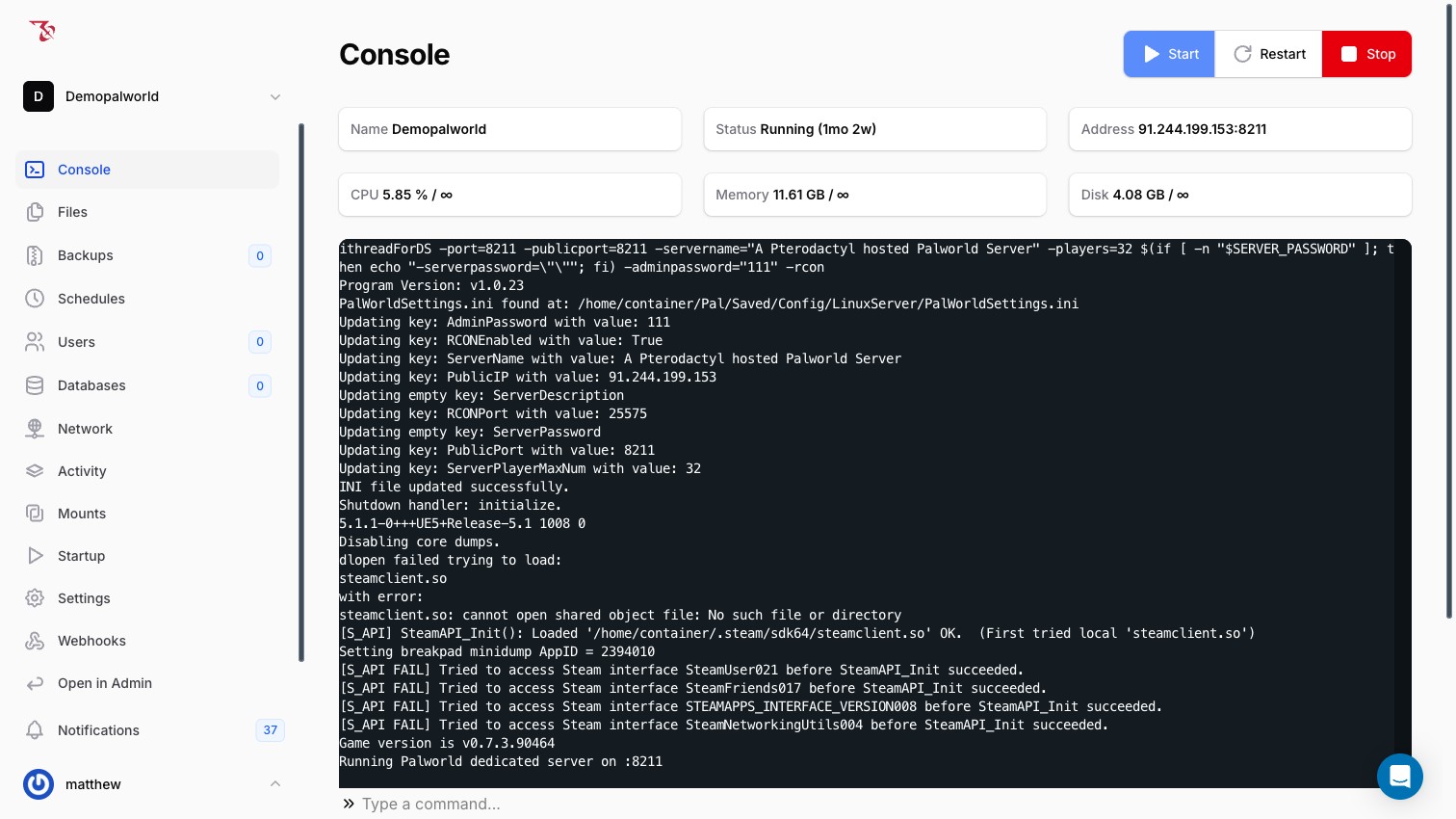
- Power buttons: Start, Restart, and Stop (red) at the top-right.
- Log pane: a large terminal view showing everything the server prints.
- Command input: below the log, with the placeholder "Type a command...". Anything you type here is sent to the running server as an RCON command. See Console commands.
- Stat cards: three boxes below the command bar. They are empty while the server is offline and fill in once it is running.
Start, stop, or restart your server
- Go to Console.
- Click Start to boot the server, Restart to stop and start it in one step, or Stop to shut it down.
- Watch the log pane. A Palworld server can take a minute or two to come up, especially on the first boot or after an update.
Tip
Changes you make on the Startup page (server name, passwords, max players, etc.) are applied on the next server start, so use Restart after editing them.
Reading the boot log
When you start the server, the log follows a predictable pattern. Here is what to expect:
- The startup command is echoed: a long line including flags such as
-port=8211and your server name. - Config parser lines: a wrapper program finds your config file and syncs it with your Startup variables:
PalWorldSettings.ini found at: /home/container/Pal/Saved/Config/LinuxServer/PalWorldSettings.ini
Updating key: ServerName with value: ...
Updating key: ServerPlayerMaxNum with value: 32
INI file updated successfully.
This runs on every start. It overwrites a specific set of keys in
PalWorldSettings.ini(server name, passwords, ports, max players) from your Startup variables, so edit those values on the Startup page, not in the INI. Gameplay options in the INI are left alone; see Game settings. - Steam API noise: lines like
[S_API FAIL] ...and asteamclient.so: cannot open shared object filemessage that resolves on its own. These are harmless; ignore them. - The success line:
Running Palworld dedicated server on :8211Once you see this, the server is up and accepting connections. (8211 is Palworld's default game port.)
Warning
If the log never reaches the
Running Palworld dedicated server line, the server did not finish booting. Check the log for errors above that point before trying again.Next steps
- Connecting to your server: find your address and port and join in-game.
- Server settings: set your server name, passwords, and player limit.
- Backing up your server: protect your world before you change anything.