Schedules let the panel run actions on your Palworld server automatically (for example, restarting it every day at a set time). A common use is nightly automated work, such as a restart or a backup, timed for when few players are online. This article shows you how to create a schedule, set its timing with the cron editor, and walks through a daily 09:00 UTC restart as a worked example.
Open the Schedules page
- Open your server in the EZ Game Host panel.
- Click Schedules in the sidebar.
The Schedules list shows each schedule's Name, Cron, Status, Only When Online, Last Run, and Next Run. If you haven't created any yet, you'll see "No schedules / Create a schedule to get started."
Create a schedule
- On the Schedules page, click the new-schedule (calendar) icon in the toolbar.
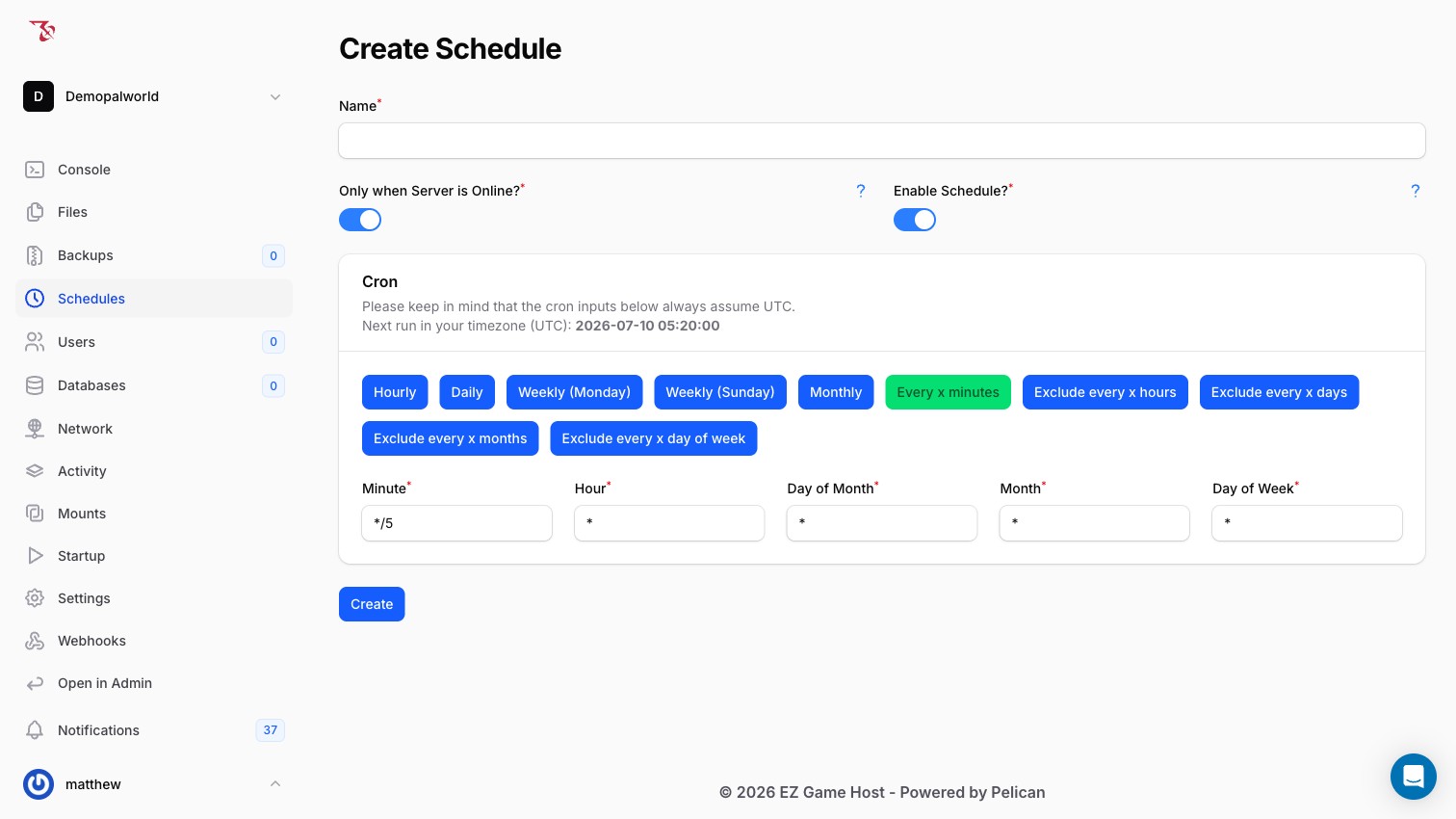
- Fill in the Create Schedule form:
- Name: a descriptive label, e.g.
Daily restart. - Only when Server is Online?: toggle (on by default). Leave it on for restarts and console commands; they only make sense while the server is running.
- Enable Schedule?: toggle (on by default). Turn it off if you want to set the schedule up now but activate it later.
- Name: a descriptive label, e.g.
- Set the timing in the Cron card (see below).
- Click Create.
Set the timing (cron)
The Cron card gives you two ways to set when the schedule runs:
- Preset buttons: Hourly, Daily, Weekly (Monday), Weekly (Sunday), Monthly, Every x minutes, plus Exclude every x hours, Exclude every x days, Exclude every x months, and Exclude every x day of week for skipping intervals.
- Manual fields: Minute, Hour, Day of Month, Month, and Day of Week (a standard five-field cron expression). The form defaults to
*/5 * * * *(every 5 minutes), so adjust it before creating.
The Croncard shows a live preview of the next run time (for example, "Next run in your timezone (UTC): 2026-07-10 04:35:00"). Check this preview before clicking Create to confirm the timing is what you intended.
Worked example: daily restart at 09:00 UTC
- Click the new-schedule icon and name the schedule
Daily restart at 09:00 UTC. - Leave Only when Server is Online? and Enable Schedule? on.
- Click the Daily preset, then set the manual fields to:
- Minute:
0 - Hour:
9 - Day of Month:
* - Month:
* - Day of Week:
*
This is the cron expression
0 9 * * *. - Minute:
- Confirm the next-run preview shows the expected time, then click Create.
Add tasks to the schedule
A schedule's timing controls when it fires; the tasks you attach to it control what it does. After creating the schedule, open it and add one or more tasks: typically a power action (such as restarting the server) or a console command sent to your Palworld server. For the daily restart example, add a task that performs a restart power action.
Broadcast console command. Palworld broadcasts the message to everyone on the server. See Using console commands for details on Broadcast and other commands.