This article covers routine maintenance for your Palworld server on the EZ Game Host panel: keeping the game up to date, renaming your server (in the panel and in the in-game server browser), reading the info on the Settings page, and reinstalling the server as a last resort.
Updating Palworld
Your server updates itself through the Auto Update variable, which runs the update check every time the server starts.
- In the panel sidebar, open Startup.
- Under Server Variables, find Auto Update (
{{AUTO_UPDATE}}). Its help text reads "Auto update the server on start." Make sure the toggle is on. - Go to Console and click Restart (or Stop, then Start).
On boot, the server downloads any pending Palworld update before starting. That means updating is simply: Auto Update on + restart. There is no separate "update" button.
See Schedules if you want to restart the server automatically on a regular basis, and Backing up your server before applying big game updates.
Renaming your server
There are two different names, set in two different places:
| Name | Where to change it | Who sees it |
|---|---|---|
| Panel name (e.g. "Demopalworld") | Settings > Server Information | Only you and your subusers, in the panel |
| In-game name (e.g. "A Pterodactyl hosted Palworld Server") | Startup > Server Name | Players, in the Palworld server browser |
Rename the server in the panel
- Open Settings in the sidebar.
- In the Server Information card, edit the Server Name field (and optionally the Server Description).
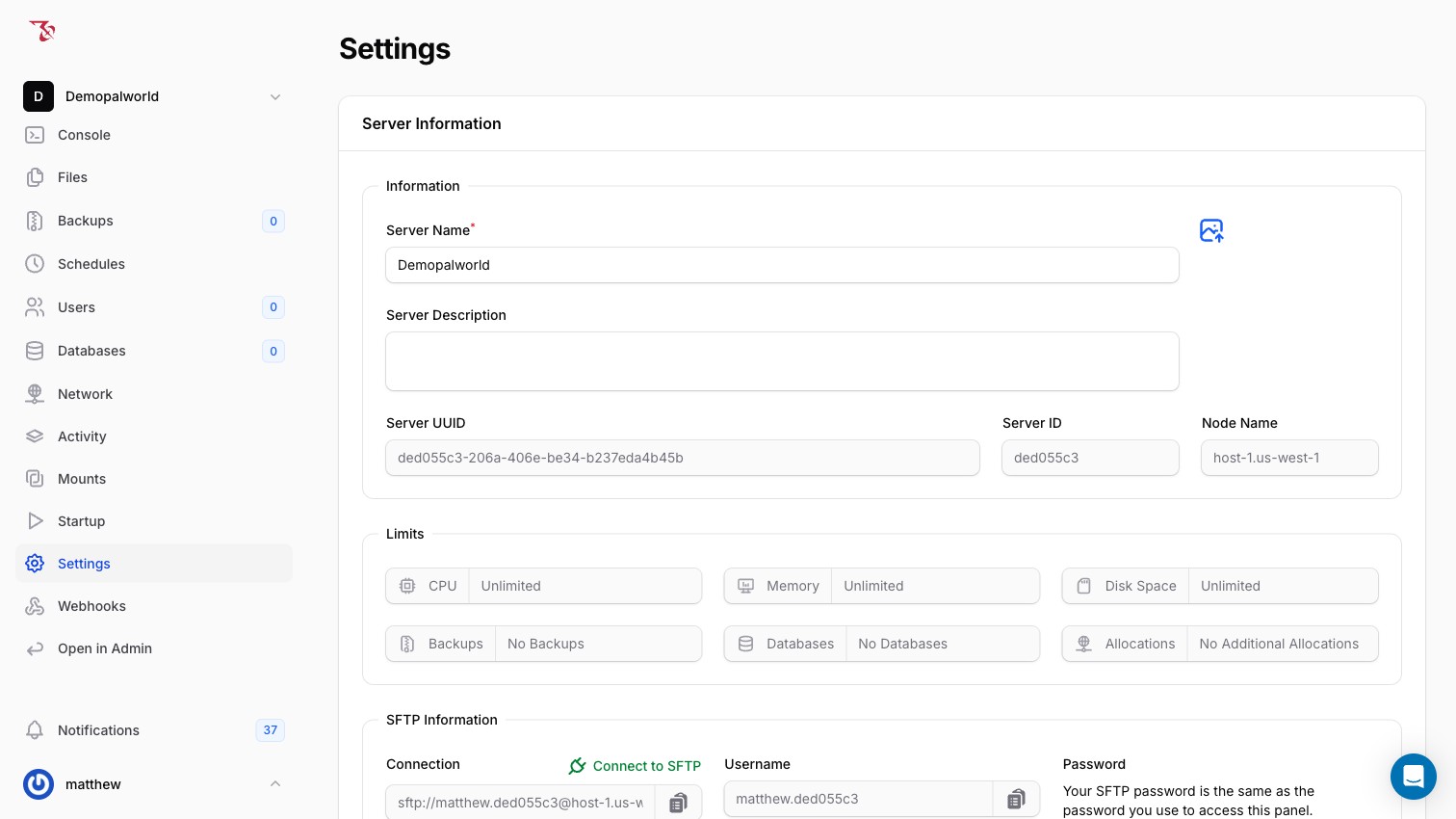
You can also give your server an icon in the panel using the image upload button in the top-right of the same card.
This only changes how the server is labeled inside the panel; it has no effect in-game.
Rename the server players see
- Open Startup in the sidebar.
- Under Server Variables, edit Server Name (
{{SERVER_NAME}}). - Restart the server from Console. Startup variable changes are applied on the next server start: a wrapper writes the value into
PalWorldSettings.iniduring boot, so editing that key directly in the file has no effect.
See Server settings and startup variables for the full list of startup variables.
Reading the Settings page
The Settings page also shows useful reference information:
- Server UUID and Server ID: unique identifiers for your server (the short ID also appears in your panel URLs). Include these when contacting support.
- Node Name: the host machine your server runs on (e.g.
host-1.us-west-1). - Limits: your plan's resource allowances, covering CPU, Memory, Disk Space, Backups, Databases, and Allocations. For example, if Backups shows "No Backups", the create-backup button on the Backupspage is disabled with a "Backup Limit Reached" tooltip.
Reinstalling your server
Reinstalling is a recovery option for a badly broken install, not a routine action.
- Open Settings in the sidebar.
- Scroll to the Reinstall Server card at the bottom.
- Click the red Reinstall button.
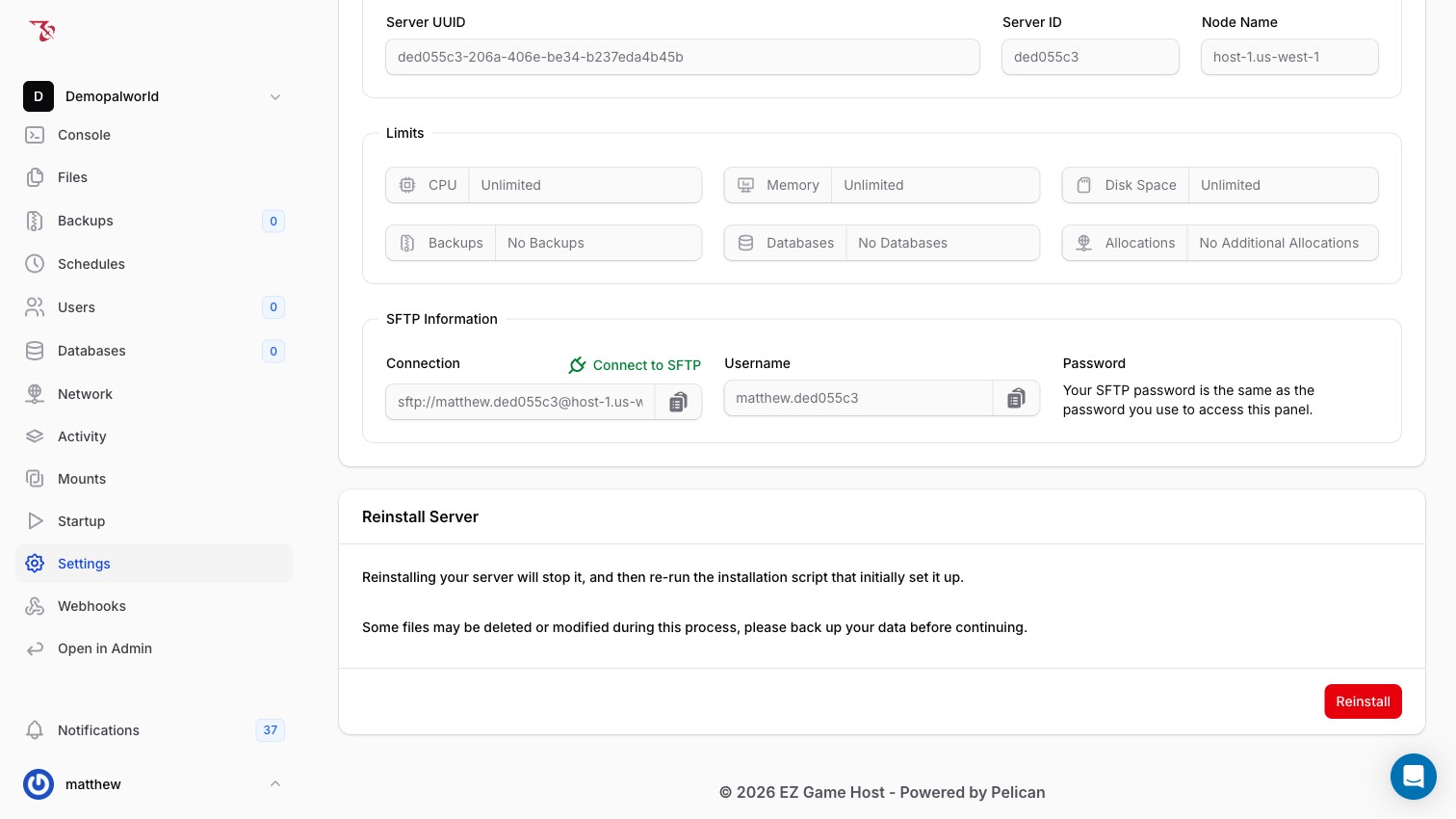
The server stops and the installation script that initially set it up runs again. When it finishes, start the server again from Console.
Is my server booting correctly?
When you start the server, watch the log in Console. A healthy boot looks like this:
- The config wrapper finds and updates the live INI, ending with
INI file updated successfully. - Some Steam noise appears: lines like
steamclient.so: cannot open shared object filefollowed by it loading from another path, and several[S_API FAIL]lines. These are normal for a Linux dedicated server and can be ignored. - The game version is printed (e.g.
Game version is v0.7.3.90464). - The line
Running Palworld dedicated server on :8211means the server is up and accepting connections. The number after the colon is your server's port (shown on the Network page); 8211 is the Palworld default.
If you reach the "Running Palworld dedicated server" line, the server is healthy. Any join issues are more likely connection-related; see Connecting to your server.