This article shows you where to find your server's connection address in the EZ Game Host panel and what your players need to do to join your Palworld server.
Find your server address
- Open your server in the panel and click Network in the sidebar.
- The table lists your server's allocations with Address and Port columns (for example,
203.0.113.10:8211). - The allocation marked with the orange star is your primary allocation. This is the address players connect to.
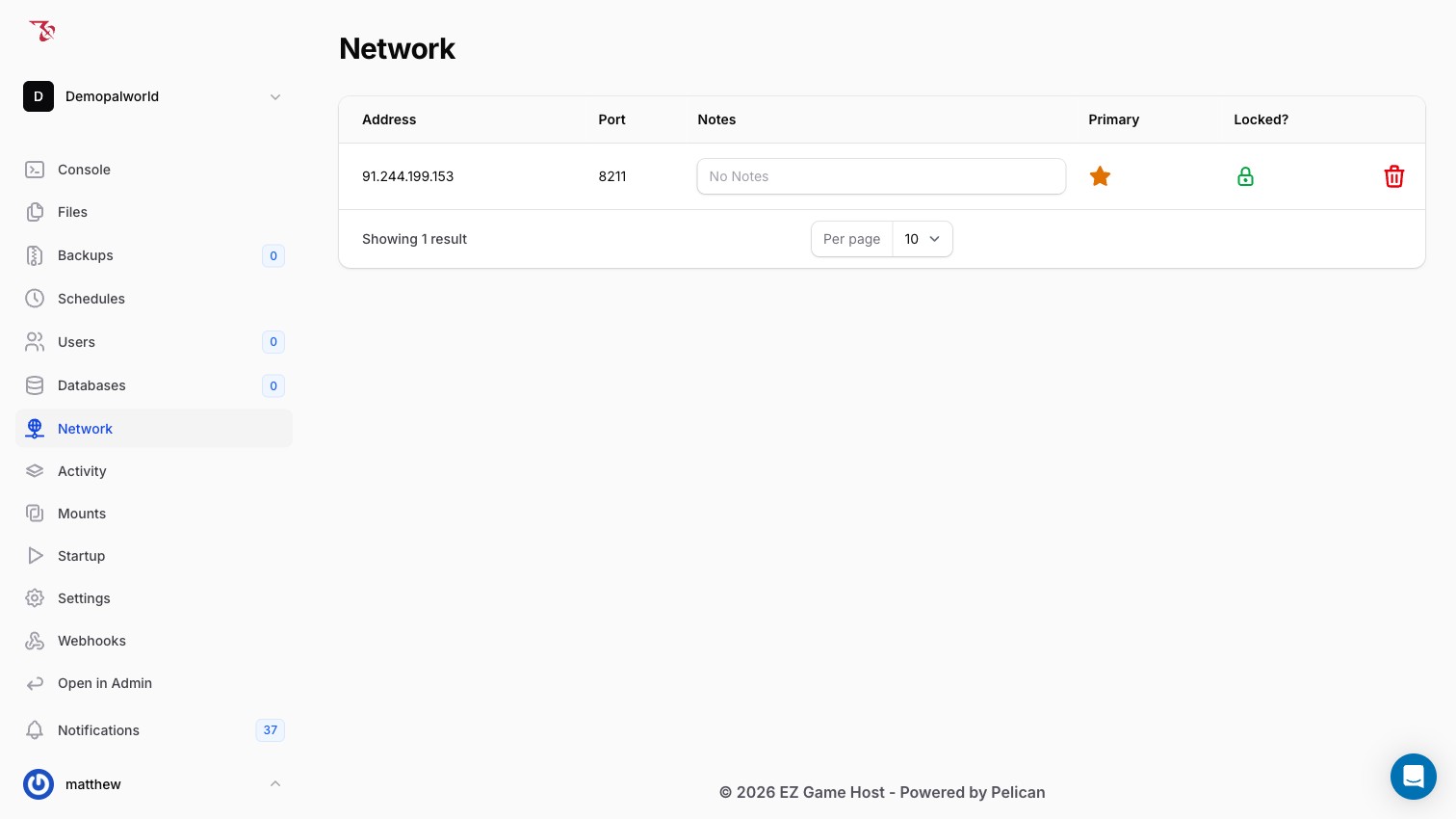
Your connection address is the two values combined as Address:Port, e.g. 203.0.113.10:8211. Port 8211is Palworld's default game port.
Running Palworld dedicated server on :8211 before sharing the address. See Getting started.Managing your allocation
The Network page also lets you manage each allocation in the table:
- Notes: every allocation has an editable Notes field (it shows "No Notes" until you add one), handy for labeling what a port is used for.
- Primary: the orange star marks your primary allocation.
- Locked?: each row shows a lock indicator, and a red trash icon also appears on each row.
Join from Palworld (Steam)
Joining by direct IP is the standard Palworld flow and the most reliable way onto your server:
- Launch Palworld and select Join Multiplayer Game from the main menu.
- Enter the server address as
IP:port(e.g.203.0.113.10:8211) in the direct-connect field and connect. - If your server has a password set, players are prompted to enter it before joining.
Set or remove a join password
The join password is the Server Password variable on the Startuptab. The panel's help text: "If specified, players must provide this password to join the server." Leave it empty for a server anyone with the address can join.
- Open the Startup tab in the sidebar.
- Find Server Password and enter a password (or clear it to remove the requirement).
- Restart the server. Startup variables are applied to the server's config on the next start.
PalWorldSettings.ini directly. Every time the server starts, the panel rewrites the ServerPassword (and AdminPassword) keys in that file from the Startup variables, so direct INI edits to those keys are overwritten at boot.Control which platforms can connect
The Connection Platformvariable (labeled "Connection Platfrom" in the panel) on the Startuptab controls "The platform players will be able to connect from." The options are Steam and Xbox. Like other startup variables, a change takes effect on the next server start.
The server's live config file (Pal/Saved/Config/LinuxServer/PalWorldSettings.ini) also contains a CrossplayPlatforms=(Steam,Xbox,PS5,Mac)option, which is Palworld's own crossplay platform list. See Editing PalWorldSettings.ini for how the panel manages that file.
Ports players never use
- RCON Port (default
25575) is for the panel's console integration only. Its help text on the Startuptab says it all: "Does not need to be allocated!" Players never connect to it. See Sending console commands. - The Palworld REST API is disabled by default (
RESTAPIEnabled=FalseinPalWorldSettings.ini, port8212), so there is nothing to share there either.
The only address your players ever need is the game address from the Network tab.