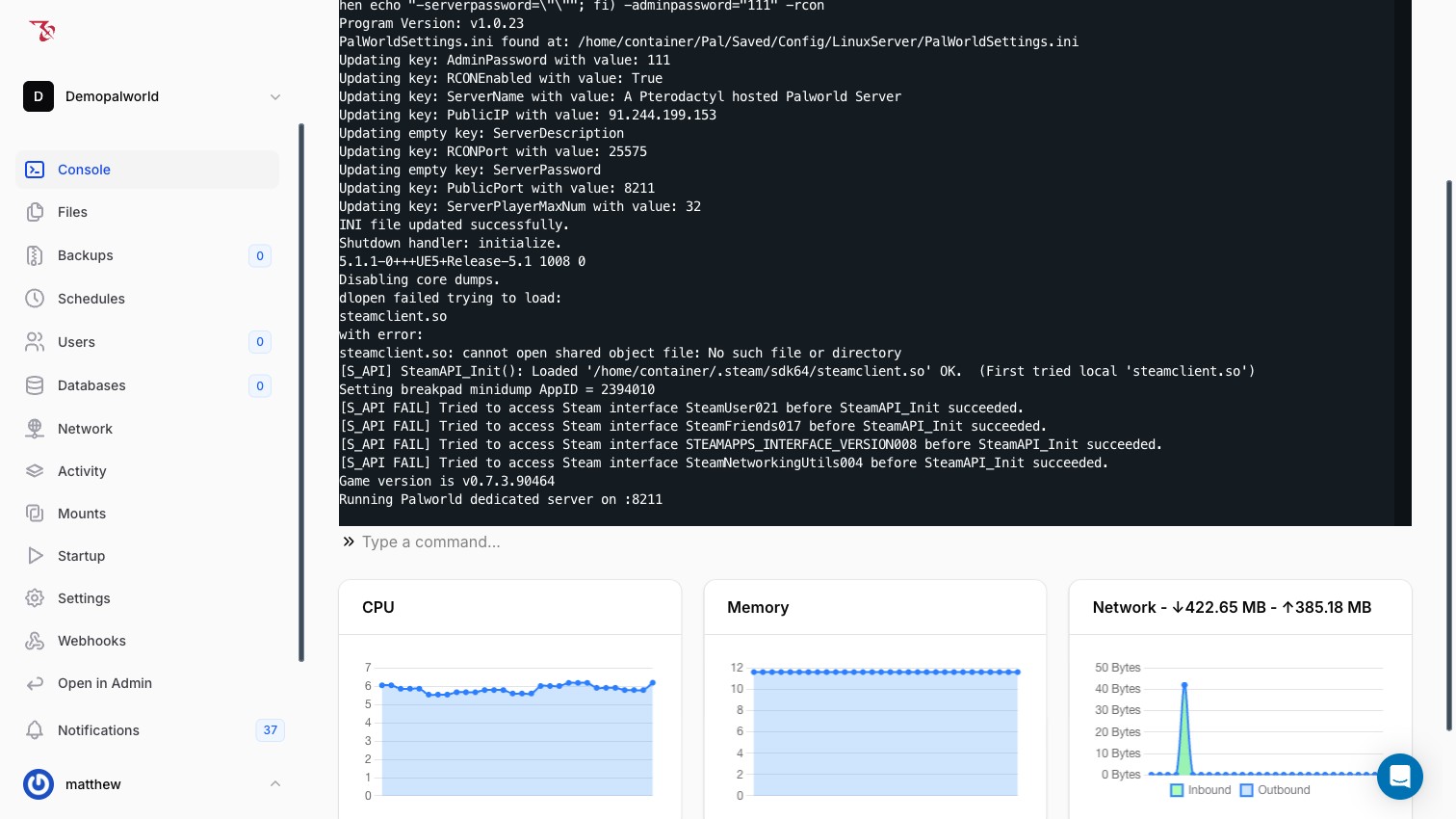
The EZ Game Host panel lets you send admin commands to your Palworld server directly from the Console page (no separate RCON client needed). This article explains how the console input works and lists the most common Palworld admin commands.
How the console input works
Palworld does not read commands from standard server input. Instead, the panel relays anything you type in the console to the running game over RCON:
- The server's startup process force-enables RCON (
RCONEnabled=TrueinPal/Saved/Config/LinuxServer/PalWorldSettings.ini) every time the server starts. - Each command you type is sent to the game as an RCON command, authenticated automatically with the Admin Password from the Startup page.
You never need to enter the admin password in the panel console; it is applied for you.
This RCON link is internal to the panel and your server. The RCON port never needs to be reachable from the internet (its help text on the Startuppage notes it "Does not need to be allocated!"), so don't open or forward it publicly.
RCONEnabled, RCONPort, or AdminPassword by editing the INI file. See Server settings from the Startup page.Send a command
- Open your server in the panel and go to Console.
- Make sure the server is running. If it isn't, click Startat the top-right and wait for the log to show the server is up (you'll see a line like
Running Palworld dedicated server on :8211). - Click the input box labeled "Type a command..." below the console output.
- Type the command (for example,
ShowPlayers) and press Enter. - Any response from the command is printed to the console output.
Common Palworld admin commands
These are standard Palworld game commands (RCON/admin commands provided by the game itself, not by the panel):
| Command | What it does |
|---|---|
ShowPlayers | Lists players currently connected to the server, along with their identifiers. |
Info | Shows server name and version information. |
Save | Saves the world immediately. |
Broadcast <message> | Sends a message to all players on the server. |
KickPlayer <steamid> | Kicks the specified player from the server. |
BanPlayer <steamid> | Bans the specified player from the server. |
UnBanPlayer <steamid> | Lifts a ban previously issued with BanPlayer. |
Shutdown <seconds> <message> | Shuts the server down gracefully after the given delay, showing the message to players. |
DoExit | Stops the server immediately, without warning or delay. |
DoExit stops the server instantly and does not warn players. For a graceful stop, use Shutdown <seconds> <message> (for example, Shutdown 60 Server restarting in 60 seconds) so players have time to get safe, and consider running Save first.Save or restart warning) with schedules; see Automating tasks with schedules.Kicking or banning a player
KickPlayer and BanPlayerneed the player's ID, which you get from ShowPlayers:
- In the Console, run
ShowPlayers. The game lists every connected player with their identifiers (name, player UID, and Steam ID). - Copy the player's Steam ID from the output (not the player UID; the commands below expect the Steam ID).
- Run
KickPlayer <steamid>to remove them from the server, orBanPlayer <steamid>to keep them out.
If you need to reverse a ban later, run UnBanPlayer <steamid> with the same ID.
BanPlayerare specific to your server. Separately, the server's config file (Pal/Saved/Config/LinuxServer/PalWorldSettings.ini) sets a BanListURLpointing to Palworld's official global ban list (https://b.palworldgame.com/api/banlist.txt), which the game checks when authentication (bUseAuth) is enabled. Both are set by default. This is standard Palworld behavior, not a panel feature.Using admin commands in-game instead
Players in your game can also authenticate as admins from the in-game chat. Per the Admin Password help text on the Startuppage: "If specified, players must provide this password (via the in-game chat or RCON) to gain access to administrator commands on the server."
In-game, type /AdminPassword <password> in chat (using the Admin Password value from the Startup page) to unlock admin commands for that player. This is a Palworld game feature and works independently of the panel console.