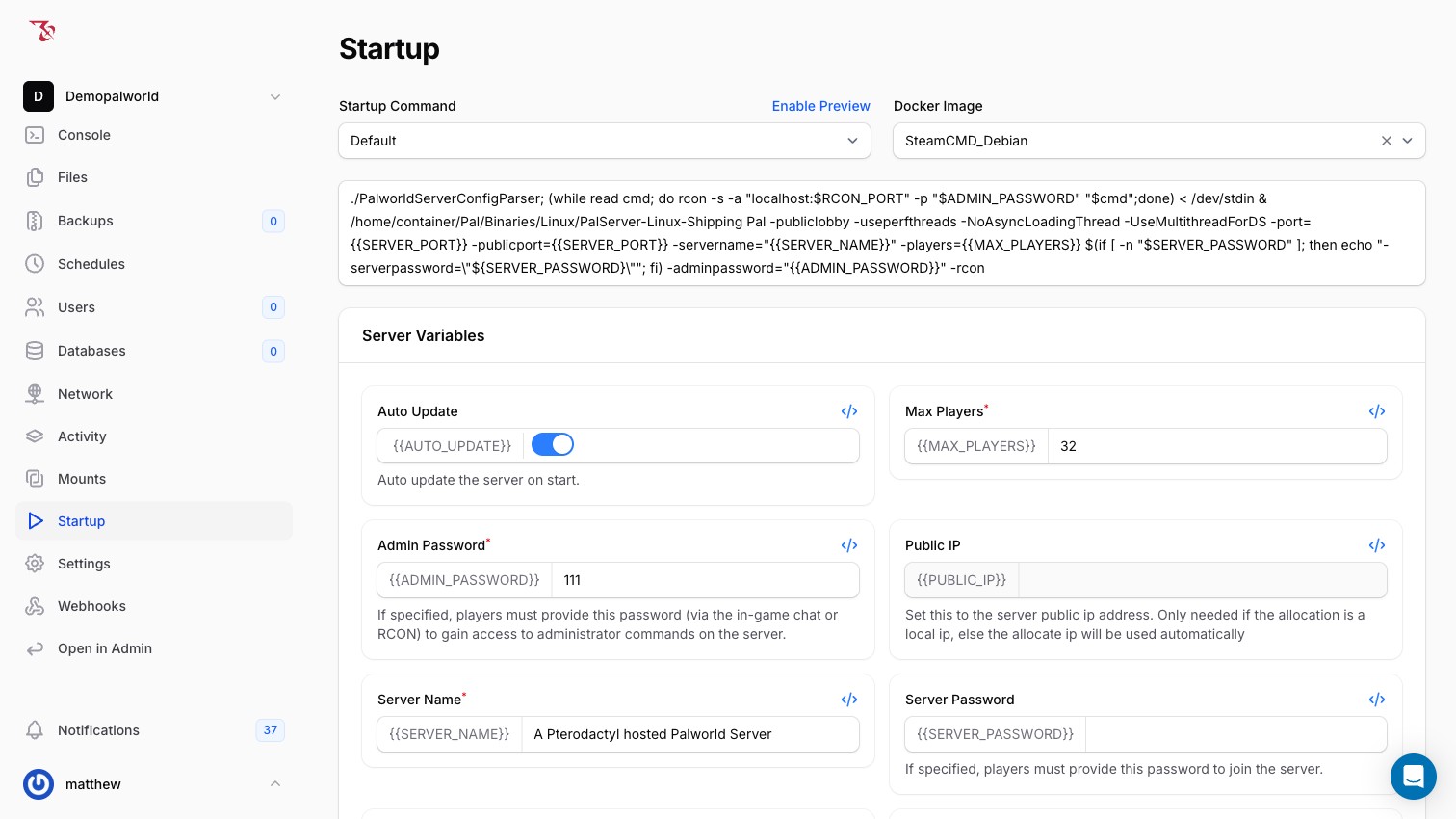
The Startuptab in the EZ Game Host panel is the place to change your Palworld server's name, description, passwords, player limit, and connection platform. This article explains each variable and why editing the INI keys these variables manage (see the list below) directly in PalWorldSettings.ini will not work.
Edit a Startup variable
- Open your server in the panel and click Startup in the sidebar.
- Scroll to the Server Variables section. Each variable shows its name, a
{{VAR}}badge, and help text. - Change the value in the field you want (see the list below).
- Go to the Console page and click Restart (or Start if the server is stopped). Changes take effect on the next server start.
Pal/Saved/Config/LinuxServer/PalWorldSettings.ini, overwriting whatever is in the file. Editing those keys in the INI is pointless (they are replaced at boot), so change them on the Startup tab instead. See Why editing the INI doesn't work below for the exact list of keys.The variables
Fields marked with * in the panel are required.
Server Name {{SERVER_NAME}}
The name shown to players in-game and in the server browser. Default: A Pterodactyl hosted Palworld Server. Change this to something recognizable.
Server Description {{SERVER_DESCRIPTION}}
"The description of the server." Shown to players browsing servers. Optional; empty by default.
Server Password {{SERVER_PASSWORD}}
"If specified, players must provide this password to join the server." Leave it empty for a public server with no join password.
Admin Password {{ADMIN_PASSWORD}}
"If specified, players must provide this password (via the in-game chat or RCON) to gain access to administrator commands on the server."
Max Players {{MAX_PLAYERS}}
The maximum number of players that can be connected at once. Default: 32.
Connection Platform {{ALLOW_CONNECT_PLATFORM}}
"The platform players will be able to connect from": choose Steam or Xbox. (Yes, the field is spelled "Platfrom" in the panel.)
Public IP {{PUBLIC_IP}}
"Set this to the server public ip address. Only needed if the allocation is a local ip, else the allocate ip will be used automatically". Most customers can leave this empty. Your server's address is shown on the Network page; see Connecting to your server.
RCON Port {{RCON_PORT}}
The port the game's RCON interface listens on (default 25575). The help text notes: "Does not need to be allocated!" It is used internally by the panel console and is not exposed to players. RCON is force-enabled at every start (the config parser sets RCONEnabled=True) so the panel console works.
Auto Update {{AUTO_UPDATE}}
"Auto update the server on start." When this toggle is on, the server checks for and installs Palworld updates each time it starts. See Updating and maintenance.
Why editing these in PalWorldSettings.ini doesn't work
Every time the server starts, a wrapper program runs before the game and writes the Startup variables into the live config file at Pal/Saved/Config/LinuxServer/PalWorldSettings.ini. You can see this in the console boot log, for example:
Updating key: ServerName with value: A Pterodactyl hosted Palworld Server
Updating key: ServerPlayerMaxNum with value: 32
INI file updated successfully.
The keys overwritten at every start are: ServerName, ServerDescription, ServerPassword, AdminPassword, ServerPlayerMaxNum, PublicIP, PublicPort, RCONPort, and RCONEnabled. Any edits you make to those keys in the INI are lost on the next start.
All other keys in PalWorldSettings.ini (gameplay options like ExpRate, DayTimeSpeedRate, or DeathPenalty) are left alone and can be edited in the file. See Adjusting gameplay settings and Managing files and SFTP.
Applying your changes
Startup variables are read only when the server boots, so a running server keeps its old values until you restart it.
- Go to the Console page.
- Click Restart (top right). If the server is stopped, click Start instead.
- Watch the boot log for the
Updating key: ...lines followed byINI file updated successfully.to confirm your new values were applied.
Related articles
- Adjusting gameplay settings: XP rates, day/night speed, and other INI options
- Console commands: sending admin commands from the panel
- Connecting to your server: finding your address and port